Accessing the wide array of products available from US retailers has never been easier, thanks to innovative cross-border shipping services. In this comprehensive guide, we'll take you through everything you need to know about cross-border shopping.
1. Sign up for a Cross Border Pickups account
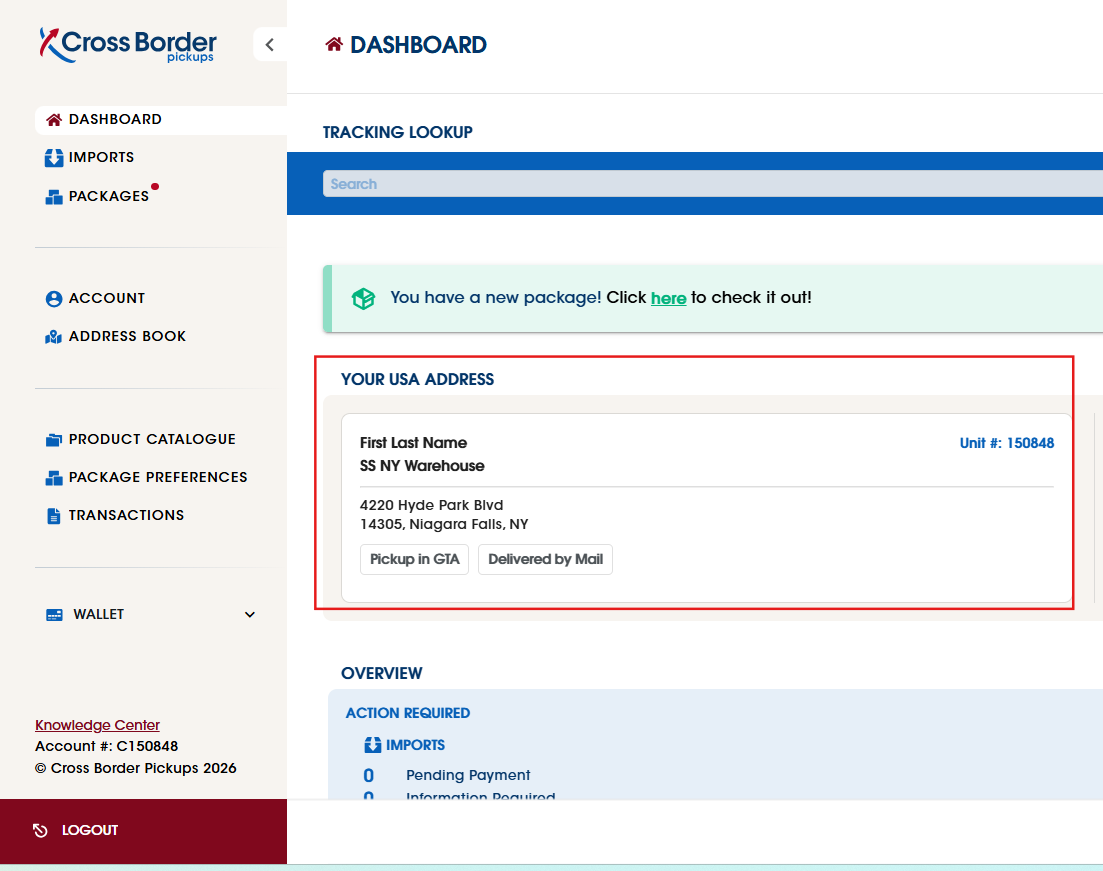
We will provide you with your own unique unit number at our US facility when you sign up. Think of it as your personal mailbox at our warehouse. You'll find your full address on your Dashboard as soon as you log into your Cross Border Pickups customer portal, and it will look like this:
4220 Hyde Park Blvd
Niagara Falls, NY 14305
Use this address when you're checking out with a US retailer.
Two things to get right at checkout:
- Include your name and your unit number. This is how our warehouse team knows the package is yours. Packages that arrive without a unit number, or under a different name, take longer to match to your account.
- You don't need to tell us you've placed an order. No heads-up email is required. Just shop as you normally would and we'll take it from there.
Before you order: how your package needs to reach us
We're a receiving warehouse, not a pickup service, so there are a couple of things we're not able to do:
- We can't pick packages up for you anywhere in the US. Every shipment has to be delivered to our Niagara Falls warehouse by the retailer or their courier.
- The shipment needs to arrive with a commercial courier and valid tracking, or with a Bill of Lading (BOL) if it's coming by freight. A Bill of Lading is simply the paperwork a freight carrier issues for a shipment. This matters because tracking is how we confirm your package actually arrived and match it to your unit.
If you're ordering from a standard US retailer, this happens automatically. It's worth double-checking on marketplace or freight orders, where delivery methods can vary.
2. Package delivered to your address with us
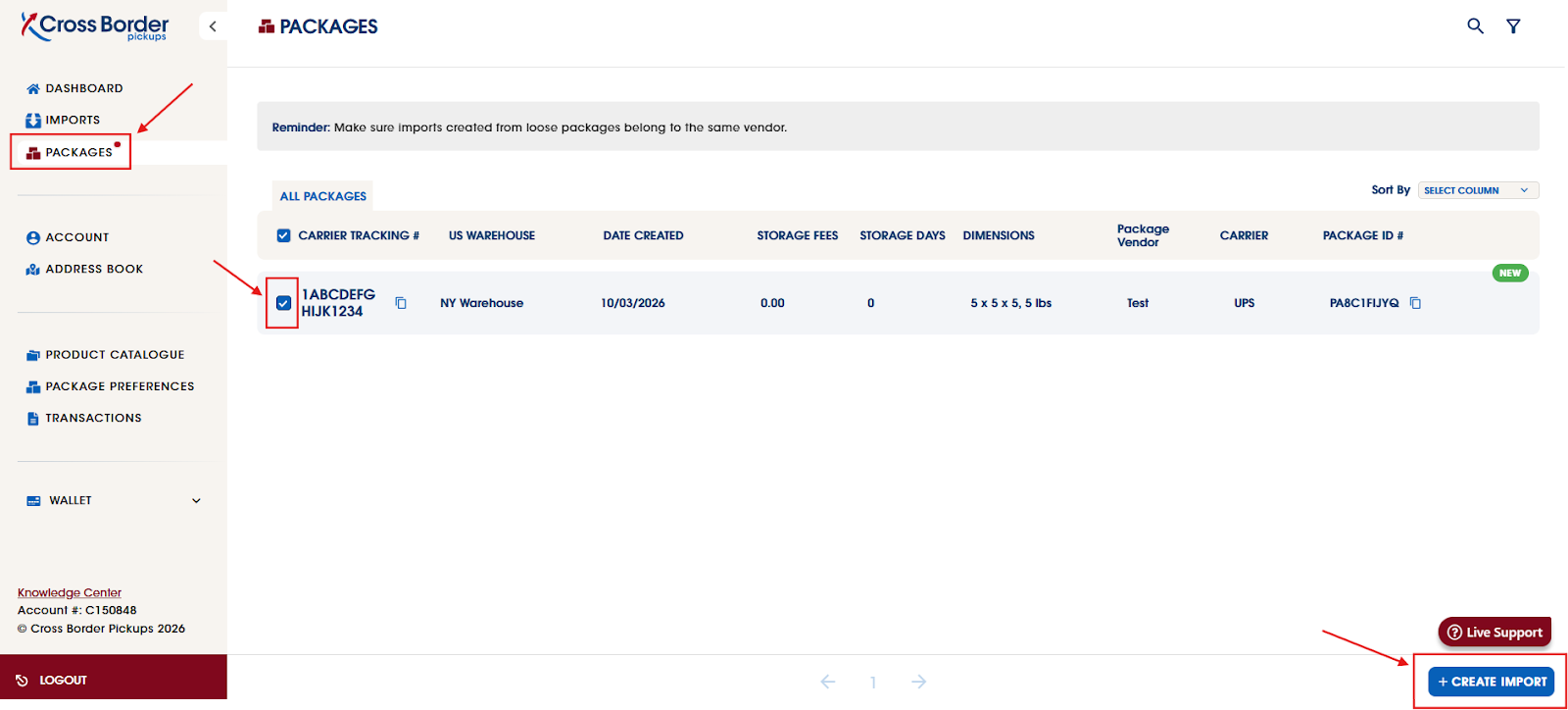
Once the package has been delivered to our US facility, our US team will have it processed into your unique unit within 1–3 business days. You will receive a notification email from us alerting you that a package has been processed into your account and requires your attention. Once logged into your customer portal, you can view the processed package under the package tab, and from here can create the import.
* For multiple packages from the same retailer/order, please select all packages first and then proceed to click on CREATE IMPORT.
Package hasn't shown up yet? If it's been delivered but you haven't seen it in your account by the end of the 3rd business day, send us the tracking information and we'll track it down for you. Occasionally a package arrives without a unit number or with a name we can't match, and tracking helps us find it quickly.
3. Filling in the required information when creating the import
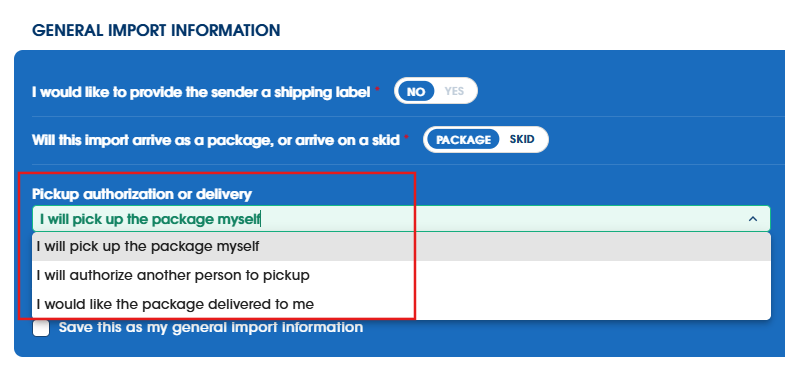
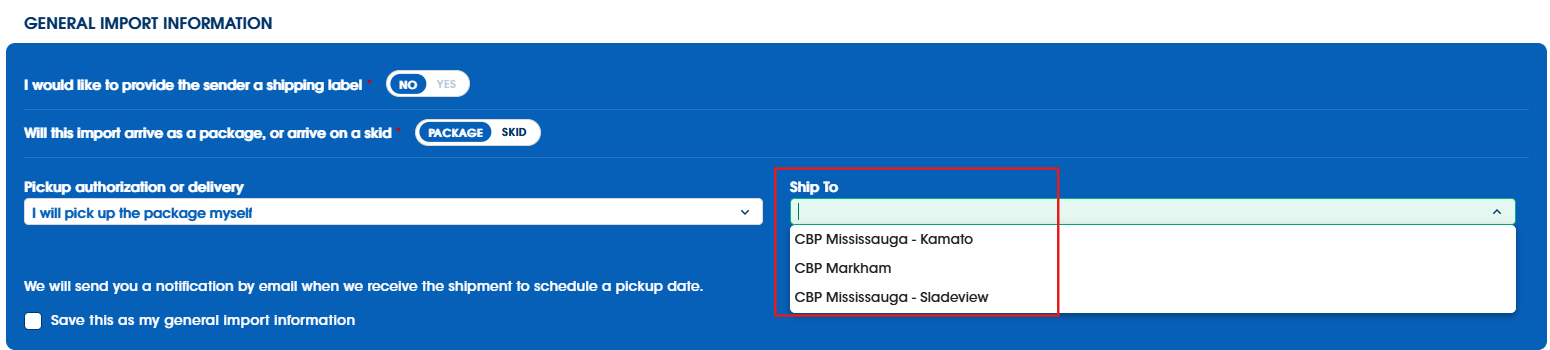
When you create your import, you'll choose how you'd like to receive your package:
- Pick it up yourself at one of our Canadian retail locations
- Have someone else pick it up on your behalf, by authorizing them during this step
- Have it delivered straight to your Canadian address using our delivery service
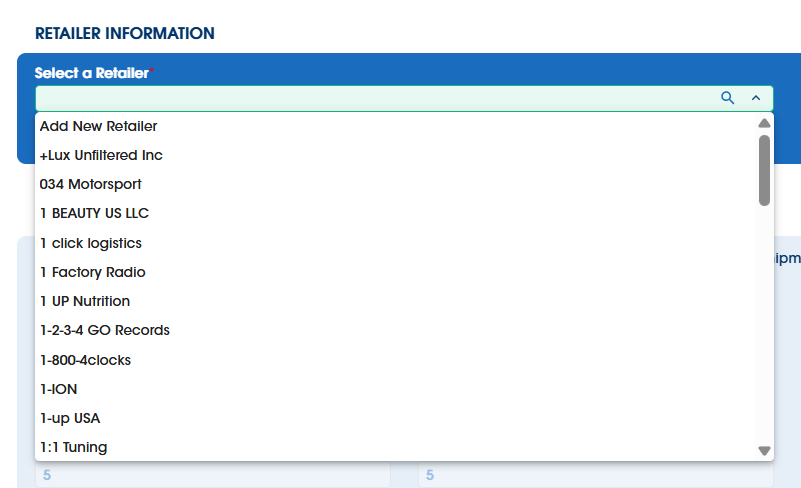
Next, select the retailer you ordered from. You can pick one from the drop-down menu or add a new one.
* For orders from individual sellers, such as eBay or Etsy, please select Amazon as a default retailer. Our system isn't able to add individual sellers as retailers.
Then you'll declare your Product Details: the number of unique products, product category, condition, country of manufacture, quantity, and value.
* Please make sure these details are accurate, as they determine the duties and taxes applied to your shipment. List the value of the item before tax and shipping.
Once everything is declared, you have the option to upload proof of value or an invoice. This is optional and not required.
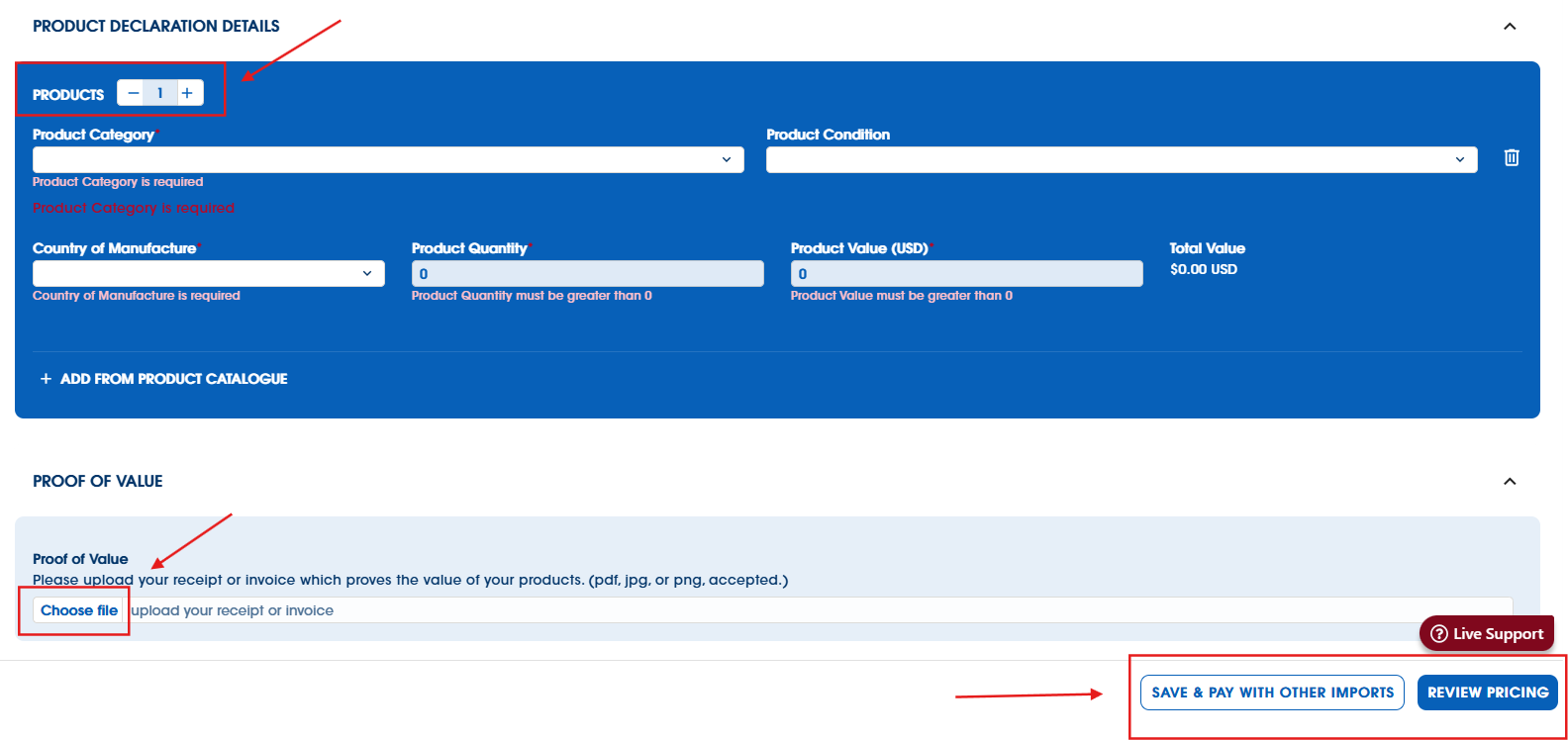
4. Save & Pay with Other Imports / Review
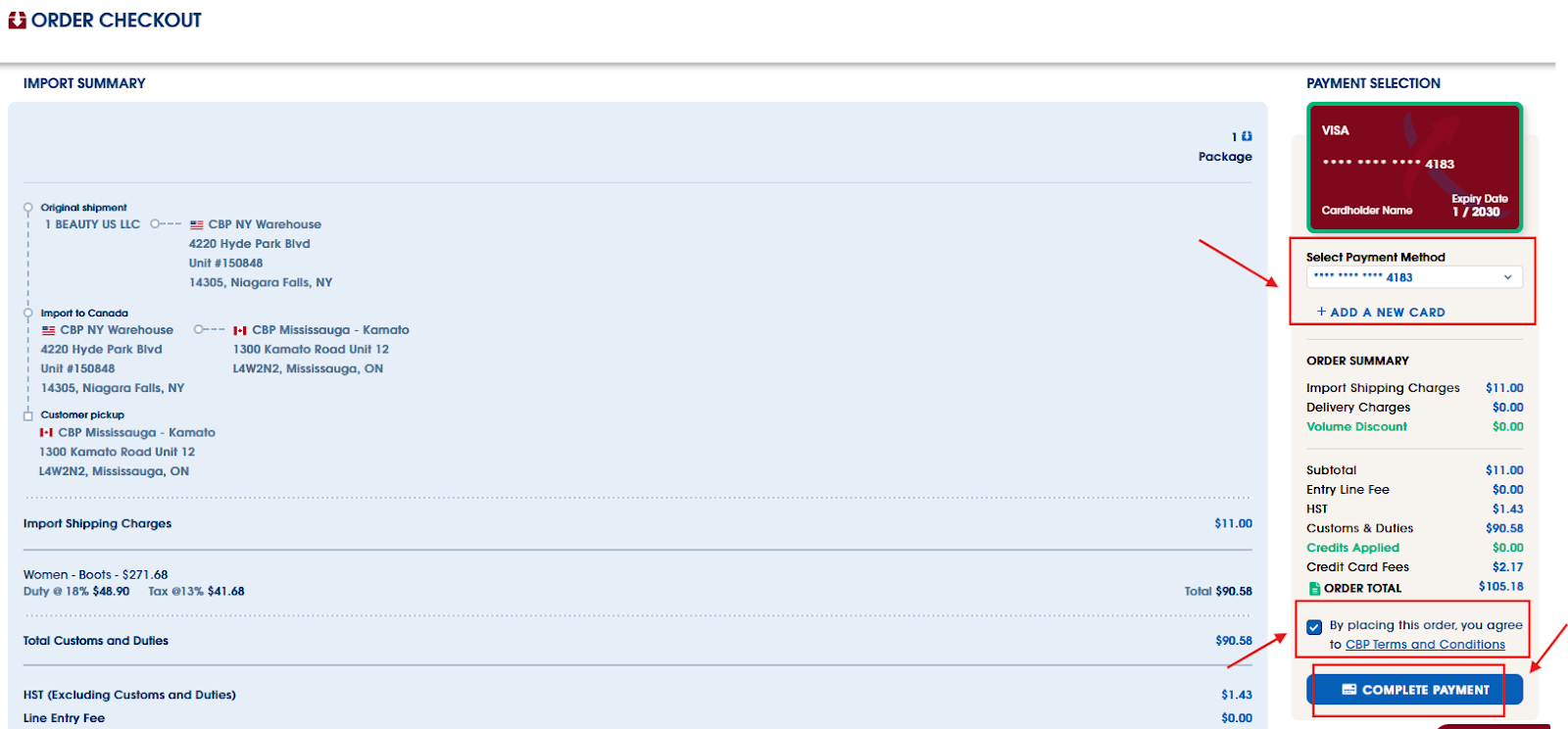
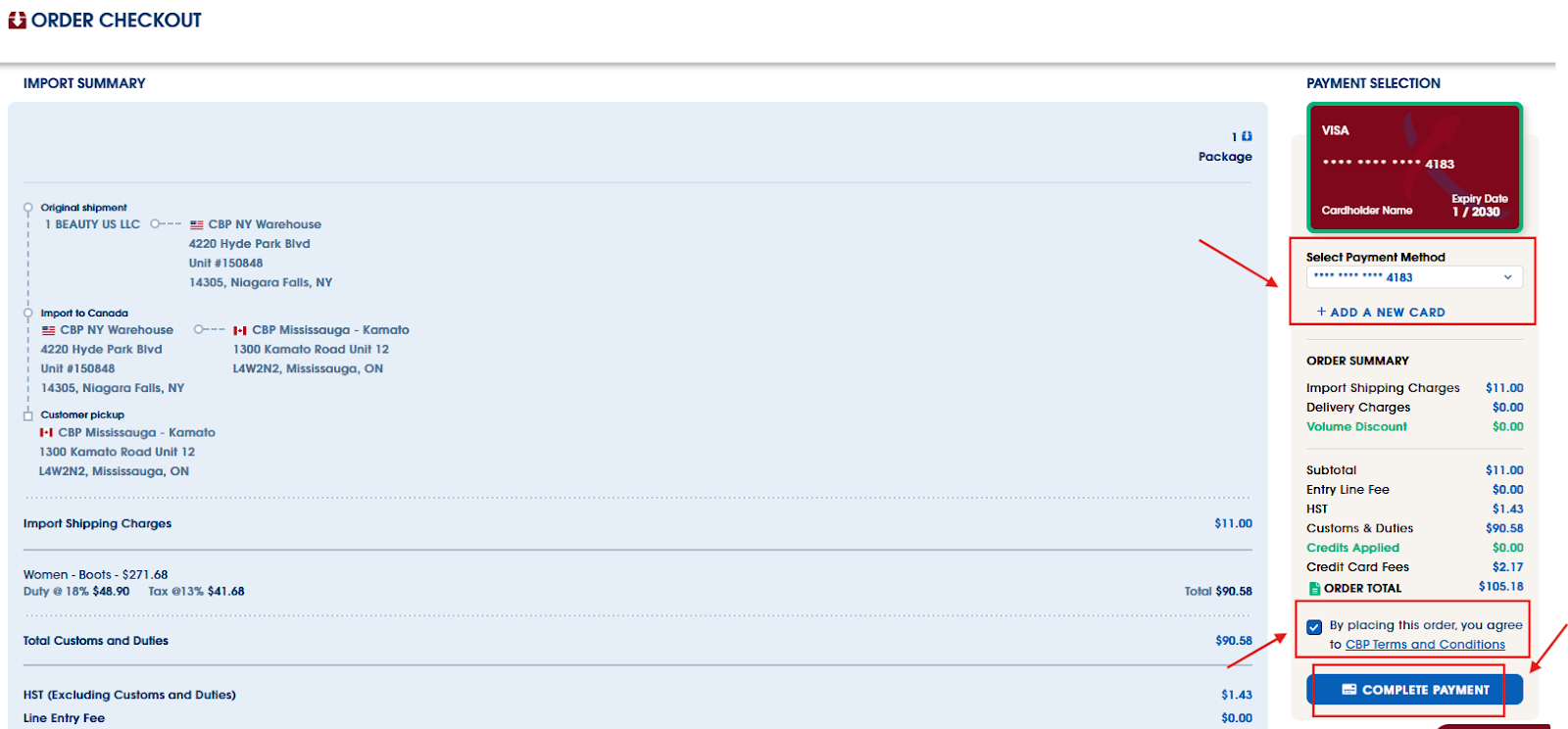
The last step is creating the order for your import. Choose Review Pricing to see your full order total, including duties, taxes, and delivery if you selected our delivery service. If you picked delivery, you'll also see a few carrier rate options to choose from. From there, add your credit card information, agree to our terms and conditions, and complete your payment.
Payment needs to be completed before we can ship your package to Canada. Until it's paid, your import will sit in your account waiting for you, so it's worth checking back if you're expecting something.
* Our volume discount applies to orders with 3 or more packages.
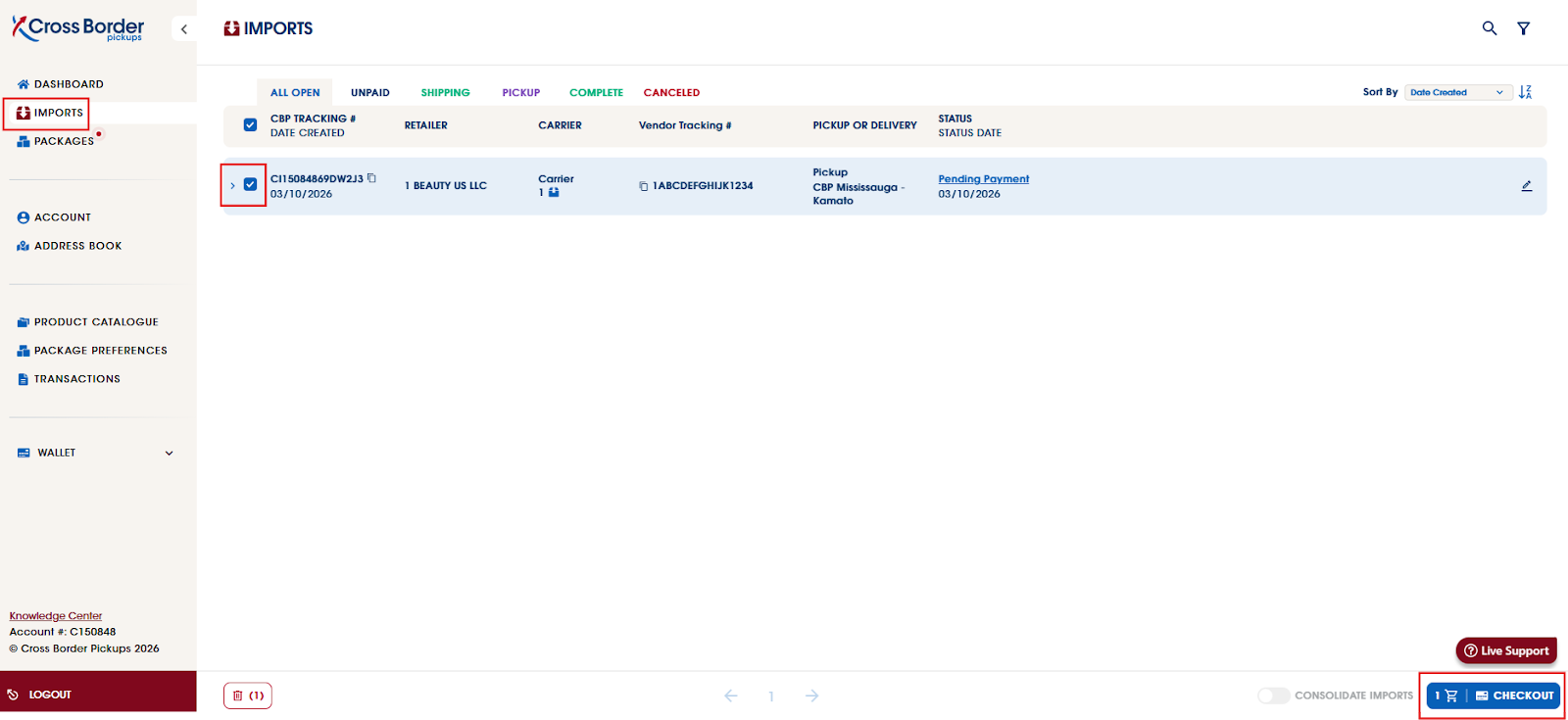
If you'd rather wait and pay for a few things at once, choose Save & Pay with Other Imports. Your import will appear under the Imports tab with a status of Pending Payment. When you're ready, select all your pending imports and click Checkout to create the order.
5. Order created
Once your order is created, the status updates to Ready to Scan/Ship. From there, your package either travels to the Canadian retail location you chose, or goes out to you through our delivery service.
You can follow along from the Imports tab:
- In-Transit from US to CA – your package is on the road
- Ready for Pickup – it's waiting for you at your chosen retail location
- Carrier In-Transit – it's with the local courier bringing it to your door
How long it takes:
- Picking up at one of our locations: typically 2–5 business days from the US to your chosen location. We'll email you a pickup notification the moment it's ready.
- Delivery to your address: once your package arrives in Canada, allow an additional 2–5 business days for the local courier to complete delivery. Timing here depends on the courier and your area.
Keep an eye on your email through this stage, since that's where your pickup and delivery notifications land.
Was this article helpful?
That’s Great!
Thank you for your feedback
Sorry! We couldn't be helpful
Thank you for your feedback
Feedback sent
We appreciate your effort and will try to fix the article